
Completing the Criminal Background Check Process
The instructions below will walk you through the process of authorizing a criminal background check (CBC) and scheduling an appointment to have your fingerprints captured.
About this task
Procedure
- Navigate to the NMLS Login page (Federal Context).
- Log in to your NMLS account.
-
Select the Federal context, if the
Context screen is displayed.
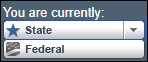
Note: Be sure you are in the Federal context by selecting Federal from the You are currently drop down list. Your screen should display the Federal Registry watermark.
- Select .
-
Answer Is your institution submitting and paying for the CBC
authorization? to determine next step:
- Yes: Click the Review and
Attest button to attest to an institution initiated MU4R.
See Attesting to MU4R if this is your first time
completing the MU4R Form. Note: If option is not available contact your employer.
- No: Click the Request New/Update button to complete and submit the MU4R Form. See MLO-initiated MU4R if this is your first time completing the MU4R Form.
Note: If you do not see the Request New/Update button, you may already have a pending filing and will need to select the Edit button to continue editing your pending MU4 filing or the Delete button to delete the pending filing that is outstanding. - Yes: Click the Review and
Attest button to attest to an institution initiated MU4R.
See Attesting to MU4R if this is your first time
completing the MU4R Form.
- Select the Criminal Background Check link on the left navigation panel.
-
Select I am requesting a Federal Criminal Background
Check.
Note: In order to become registered for the first time a Criminal Background Check authorization is required to be completed by all Federal Registrants. Also, any time an MLO changes federal employers, another CBC is authorization is required.
-
Confirm one of the following background check methods.
- Submit New Prints
- Use Existing Prints
Note: Only methods available to you will be displayed. - Complete the Demographics section and click Save
- Click Next.
-
Once all information is entered, proceed to
Attest and Submit (the last section on the left).
A legal attestation appears.
-
Check the box verifying the attestation language.
- Click Attest, no payment required
- Click Submit Filing and remit payment