
Changing Employers
About this task
Procedure
- Navigate to the NMLS Login page (Federal Context).
-
Log in to your NMLS account.
Note: If you are landed on the NMLS Connect screen, select NMLS Federal Registry in the Quick Links section.
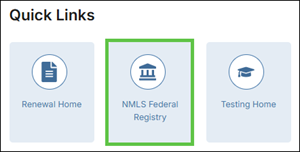
-
Select the Federal context, if the
Context screen is displayed.
Note: Be sure you are in the Federal context by selecting Federal from the You are currently drop down list. Your screen should display the Federal Registry watermark.
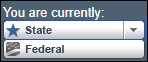
- Select .
-
Select the Request New/Update button.
Note: If you do not see the Request New/Update button, you may already have a pending filing and will need to select the Edit button to continue editing your pending MU4 filing or the Delete button to delete the pending filing that is outstanding.
- Select Identifying Information on the left navigation panel.
- Make any necessary changes to your contact information and click Save.
- Select Employment Records on the left navigation panel.
- Select the employment record you are terminating.
- Select Terminate.
- Enter the employment end date and click Terminate.
- If you will be paying and submitting the new MU4R, proceed to step 14.
-
If your new employer will be managing and paying for the new MU4R
submission:
- Select Attest and Submit on the left navigation panel.
- Once you have reviewed the attestation statement, check the box to certify your identity, then click Submit Filing.
- Consult with your institution to proceed.
- Select Employment Records on the left navigation panel.
- Click Add Current.
-
Click Yes to indicate the institution is federal
agency-regulated.
Important: If you select Yes, you are indicating that you are employed by a federal agency-regulated Institution. Contact your employer if you are unsure whether or not they are federal agency-regulated.
- Search for your new employer by legal name or NMLS ID number.
- Choose the correct institution and click Select.
- Enter the required information and click Save.
-
If you are adding a new federal agency-regulated Institution, you will be
required to submit a new Criminal Background Check request.The following steps
will help you request your new CBC:
- Select Criminal Background Check Request on the left navigation panel.
- Select I am requesting a Federal Criminal Background Check.
- Click the button next to the correct Criminal Background Check Method.
- Click Save.
-
Once all information is entered, proceed to
Attest and Submit (the last section on the left).
A legal attestation appears.
- Complete the attestation, then select the Submit Filing button to make your payment.
-
You must select I Agree to the terms and conditions and
select a payment method.
Acceptable forms of payment are Visa®, Mastercard®, and ACH.
Note: Using ACH is simple; all you need is your bank account number and bank’s routing number located on your check. NMLS will guide you through the rest.Once payment is submitted you will see the Filing Submission message indicating your submission is being processed.
What to do next
For further assistance, please contact your new employer.